ClipXtudio 0.5.419 brings together the improvements released from versions 0.5.404 through 0.5.419 in a workflow that begins with a horizontal recording and ends with a vertical clip ready to review and export. This release introduces ClipXtudio Stage, Automatic Editing, and a subtitle experience that is easier to read and correct.
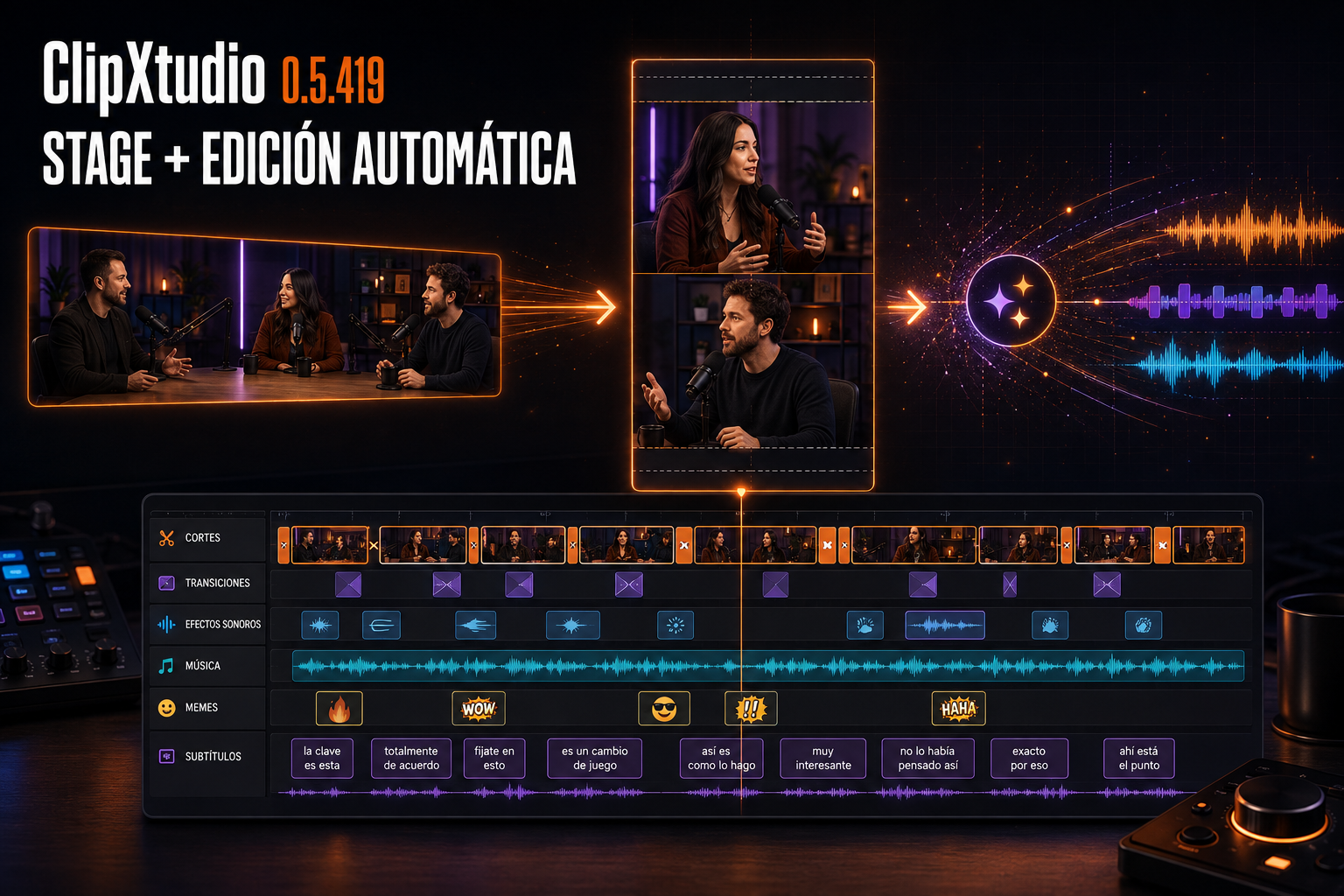
Stage is a dedicated workspace for podcasts, interviews, panels, and any conversation recorded horizontally. Its library follows the same visual workflow as Recordings, including thumbnails, search, filters, favorites, playback, editing, and access to the original folder. Importing a video does not create another buffer, duplicate the file, or add workload while the creator is streaming.
Inside the editor, every segment can use one, two, or three stacked views on a 9:16 canvas. Regions can be selected, dragged, and resized directly in the preview, while offline auto-framing suggests a composition from the people detected on the computer. Windows Face Analysis and Apple Vision keep this analysis local; the original video remains on the device and the live stream keeps its existing workflow.
Automatic Editing turns the editor into a complete starting point. After the useful range is selected, ClipXtudio can remove silences, repetitions, and filler words, distribute zooms and transitions, choose music, synchronize sound effects, and add memes only when the dialogue supports them. It also creates the social caption, YouTube proposal, subtitles, and clip score. The AI receives the transcript and up to eight lightweight JPEG samples for context; the complete video is never uploaded, and final rendering runs locally.
Automatic subtitles now appear as short two- or three-word phrases that respect pauses and punctuation instead of displaying one isolated word at a time. A dedicated Subtitles track places every block at its real interval on the timeline. Any phrase can be opened with a double-click, corrected, and saved without leaving the editor, and the change remains in the preview, project, and export.
The release also strengthens the details that support daily work: the Stage canvas always preserves its 9:16 ratio and visible margins; the expanded editor stays inside the monitor work area; Clips, Recordings, and Stage remove references to files that no longer exist; and credit reservations are confirmed only after the edit is applied. Automatic Editing costs five credits and returns them if any stage fails. Stage includes three unique imports in Free and unlimited use with ClipXtudio Pro.
The result is a clearer path for repurposing long-form content: import the conversation after the stream, choose who should be visible, let ClipXtudio build the first edit, and keep control over every cut, effect, caption, and subtitle before publishing.